

- METHOD TYPEE-wallet
- PAYMENTS

- PAYOUTS

- REFUNDS
- RECURRING
Introduction
Wero is a payment solution that aims to become the standard for European consumers and merchants. It is available through EPI member bank applications and as a mobile application on Android and iOS platforms. Built on SEPA Instant rails, Wero was launched by the European Payments Initiative (EPI). Designed to unify fragmented local schemes, Wero allows consumers to move money in seconds through a mobile application, either as a standalone wallet or embedded within an existing bank application.
Supported Countries
- Belgium
- France
- Germany
- Luxembourg
- Netherlands
Supported Currencies
- EUR
REST API 1.0
Payment Flow
1. Generate a sessionToken.
2. Perform the payment by sending a
/payment request with the following mandatory parameters:
userTokenIdamountcurrencypaymentOption.alternativePaymentMethodclass containing:paymentMethod: “apmgw_Wero“
deviceDetailsclass containing:ipAddress
userDetailsclass containing:country
Example /payment Request
{
  "sessionToken":"<sessionToken from /getSessionToken>",
  "merchantId":"<your merchantId>",
  "merchantSiteId":"<your merchantSiteId>",
  "clientRequestId":"<unique request ID in merchant system>",
  "amount":"200",
  "currency":"EUR",
  "userTokenId":"<unique customer identifier in merchant system>",
  "clientUniqueId":"<unique transaction ID in merchant system>",
  "paymentOption":{
    "alternativePaymentMethod":{
      "paymentMethod":"apmgw_Wero"
    }
  },
  "deviceDetails":{
    "ipAddress":"<customer's IP address>"
  },
  "userDetails":{
    "country":"DE"
  },
  "timeStamp":"<YYYYMMDDHHmmss>",
  "checksum":"<calculated checksum>"
}
Example /payment Response
{
"internalRequestId": 59249624111,
"status": "SUCCESS",
"errCode": 0,
"reason": "",
"merchantId": "5970183043540730700",
"merchantSiteId": "238459",
"version": "1.0",
"clientRequestId": "20250917094613",
"sessionToken": "b1bbd33205574ee3b11ec6aaea325f820121",
"clientUniqueId": "CUIDUID20240506141833",
"orderId": "8890760111",
"userTokenId": "TKN20250917094613",
"paymentOption": {
"redirectUrl": "https://pay.int.epi.engineering/c7fd2cd9-4180-455b-ae1c-ddc213536f5d",
"userPaymentOptionId": "2437339111",
"card": {}
},
"transactionStatus": "REDIRECT"
}
After the transaction is processed, Nuvei sends a Direct Merchant Notification (DMN) that includes the result of the transaction to the URL provided in urlDetails.notificationUrl, which Nuvei recommends including in the /payment request.
Web SDK
Follow the steps to perform a payment using the Nuvei Web SDK integration.
1. Initiate a Session
Before submitting payment using the client-side Nuvei Web SDK, send the /openOrder API call.
2. Initialize the Web SDK
Instantiate the Web SDK with the sessionToken received from the server call to /openOrder.
3. Create an APM Payment
Send a createPayment() request with the following mandatory parameters:
session tokenpaymentOption.alternativePaymentMethodclass containing:paymentMethod: “apmgw_Wero“
deviceDetailsclass containing:ipAddress
userDetailsclass containing:country
Example createPayment() Request
sfc.createPayment({

  sessionToken: '<sessiontoken>',
  paymentOption: {
    alternativePaymentMethod: {
      paymentMethod: 'apmgw_Wero',
    },
  },
  deviceDetails: {
    ipAddress: "<customer's IP address>"
  },
  userDetails: {
    country: 'US',
  }
}, function (res) {
  console.log(res)
})
After the transaction is processed, Nuvei sends a Direct Merchant Notification (DMN) that includes the result of the transaction to the URL provided in urlDetails.notificationUrl, which Nuvei recommends including in the /openOrder request.
Simply Connect
Follow the steps to perform a payment using the Nuvei Simply Connect integration.
1. Initiate a Session
Before submitting a Simply Connect payment request, submit a server-side /openOrder API request.
2. Create an HTML Placeholder
Import the checkout.js library for building payment flows and create an HTML placeholder on your payment page for the Simply Connect UI element.
3. Submit a checkout() Request
Send a checkout() request with its mandatory input parameters, along with any other relevant parameters and customizations.
checkout({...
    "userDetails": {
      "country": "DE",
    },
  "apmConfig": {
       "apmgw_Wero": {
            "fields": {}
        }
    },
  });
After the transaction is processed, Nuvei sends a DMN that includes the result of the transaction.
DMNs
Example DMN Status=APPROVED (Sale)
ppp_status=OK&Status=APPROVED&ExErrCode=0&ErrCode=0&errApmCode=0&errApmDescription=&errScCode=0&errScDescription=&Reason=&ReasonCode=0&PPP_TransactionID=503514111&userid=11222333009&merchant_unique_id=&customData=Yankos+data+here&productId=CrossCell_name&first_name=testFN&middle_name=&last_name=myLastName&email=ti%40pay.com¤cy=EUR&customField1=&customField2=&customField3=&customField4=&customField5=&customField6=&customField7=&customField8=&customField9=&customField10=&customField11=&customField12=&customField13=&customField14=&customField15=&invoice_id=&address1=Address01&address2=&country=Germany&state=&city=MyCity&zip=10001&phone1=721291&phone2=123897&phone3=&client_ip=172.30.125.40&nameOnCard=&cardNumber=&bin=&noCVV=&acquirerId=&acquirerBank=EPI+Wero+MS-PI&expMonth=&expYear=&Token=&tokenId=&AuthCode=&AvsCode=&Cvv2Reply=&shippingCountry=&shippingState=&shippingCity=&shippingAddress=&shippingZip=&shippingFirstName=&shippingLastName=&shippingPhone=&shippingCell=&shippingMail=&total_discount=0.00&total_handling=0.00&total_shipping=0.00&total_tax=0.00&buyButtonProductBundleId=&merchant_site_id=2895117&merchant_status=&action=&requestVersion=&message=APPROVED&merchantLocale=en_US&unknownParameters=&payment_method=apmgw_Wero&ID=&merchant_id=4972436454212160565&responseTimeStamp=2026-04-29.15%3A34%3A49&buyButtonProductId=&webMasterId=&appliedPromotions=&uniqueCC=&transactionType=Auth&externalEmail=&cardCompany=&eci=&user_token_id=TFS_15345_HOTICE_Yan_011&user_token=auto&userPaymentOptionId=230593038111&TransactionID=2610000000000569021&ExternalaccountID=95daecbf-e9b1-470b-b588-258207c60863&externalTransactionId=019dd9e0-e8f6-7c21-9368-adddefcd020c&additionalExternalTransactionId=019dd9e0-86d4-77cf-9520-098fddedeee5&APMReferenceID=FB5ABCB7DFDD10873649E29749A017F6&orderTransactionId=2927486111&totalAmount=83.38&dynamicDescriptor=Yanko-Hot_Ice_Descriptor&item_name_1=CrossCell_name&item_number_1=&item_amount_1=83.38&item_quantity_1=1&item_discount_1=0.00&item_handling_1=0.00&item_shipping_1=0.00&feeAmount=&amountWithoutFee=&houseNumber=&customCurrency=&upoRegistrationDate=20260407&type=DEPOSIT&clientRequestId=&relatedTransactionId=&apmPayerInfo=%7B%22APMrequestId%22%3A%22019dd9e0-e8f6-7c21-9368-adddefcd020c%22%2C%22ConsentId%22%3A%22019dd9e0-86d4-77cf-9520-098fddedeee5%22%2C%22ProviderCaptureStatus%22%3A%22ConsentGranted%22%7D&sessionId=9c72203c735bf41fd897ba84c11d&responsechecksum=072b29b534f517f11e33cc4589a7f63f&advanceResponseChecksum=bb74006451d247ec09a9e9d57364fd8a
Example DMN Status=DECLINED
ppp_status=FAIL&Status=DECLINED&ExErrCode=0&ErrCode=0&errApmCode=0&errApmDescription=&errScCode=0&errScDescription=&Reason=GeneralError&ReasonCode=1&PPP_TransactionID=495824111&userid=testVC_0003&merchant_unique_id=20260417161715&customData=&productId=&first_name=&middle_name=&last_name=&email=test%40test.com¤cy=EUR&customField1=&customField2=&customField3=&customField4=&customField5=&customField6=&customField7=&customField8=&customField9=&customField10=&customField11=&customField12=&customField13=&customField14=&customField15=&invoice_id=&address1=&address2=&country=Germany&state=&city=&zip=&phone1=&phone2=&phone3=&client_ip=&nameOnCard=&cardNumber=&bin=&noCVV=&acquirerId=&acquirerBank=EPI+Wero+MS-PI&expMonth=&expYear=&Token=&tokenId=&AuthCode=&AvsCode=&Cvv2Reply=&shippingCountry=&shippingState=&shippingCity=&shippingAddress=&shippingZip=&shippingFirstName=&shippingLastName=&shippingPhone=&shippingCell=&shippingMail=&total_discount=0.00&total_handling=0.00&total_shipping=0.00&total_tax=0.00&buyButtonProductBundleId=&merchant_site_id=242181&merchant_status=&action=&requestVersion=&message=DECLINED&merchantLocale=&unknownParameters=&payment_method=apmgw_Wero&ID=&merchant_id=5634436935940029474&responseTimeStamp=2026-04-30.01%3A35%3A23&buyButtonProductId=&webMasterId=&appliedPromotions=&uniqueCC=&transactionType=Settle&externalEmail=&cardCompany=&eci=&user_token_id=testVC_0003&userPaymentOptionId=230538345111&TransactionID=2610000000000560988&ExternalaccountID=2610000000000560988&externalTransactionId=2610000000900699&orderTransactionId=2921167111&totalAmount=1993.74&dynamicDescriptor=static+test&item_name_1=NA&item_number_1=&item_amount_1=1993.74&item_quantity_1=1&item_discount_1=0.00&item_handling_1=0.00&item_shipping_1=0.00&feeAmount=&amountWithoutFee=&houseNumber=&customCurrency=&externalToken_blockedCard=&externalToken_cardAcquirerId=&externalToken_cardAcquirerName=&externalToken_cardBin=&externalToken_cardBrandId=&externalToken_cardBrandName=&externalToken_cardExpiration=&externalToken_cardLength=&externalToken_cardMask=&externalToken_cardName=&externalToken_cardTypeId=&externalToken_cardTypeName=&externalToken_clubName=&externalToken_creditCompanyId=&externalToken_creditCompanyName=&externalToken_extendedCardType=&externalToken_Indication=&externalToken_tokenValue=&externalToken_tokenProvider=&ECIRaw=&cryptogram=&maskedNetworkTokenNumber=&upoRegistrationDate=20251208&type=DEPOSIT&clientRequestId=&relatedTransactionId=&apmPayerInfo=%7B%22APMrequestId%22%3A%22019d9b96-30ac-7dfe-9f70-861eb3ec8c1e%22%2C%22APMcaptureId%22%3A%22019d9b96-aa2c-7425-bb91-9ba4fb934401%22%2C%22ConsentId%22%3A%22019d9b95-e29d-7353-8001-6da5fbe1f22b%22%2C%22APMcaptureRetryId%22%3A%22019ddc06-b917-765d-8315-8070bd65808e%22%2C%22CaptureRetried%22%3Atrue%2C%22ProviderCaptureStatus%22%3A%22Rejected%22%2C%22ProviderCaptureReasonCode%22%3A%22AM04%22%2C%22NextRetryTimeUtc%22%3A%222026-04-30T02%3A35%3A22.2806232Z%22%7D&responsechecksum=80fc89485c8ae2cae1de8247d0593ee9&advanceResponseChecksum=d1e8e895f48329d0b2263ef8a27708f6
User Experience
User Journey – Single Payment, First-time User
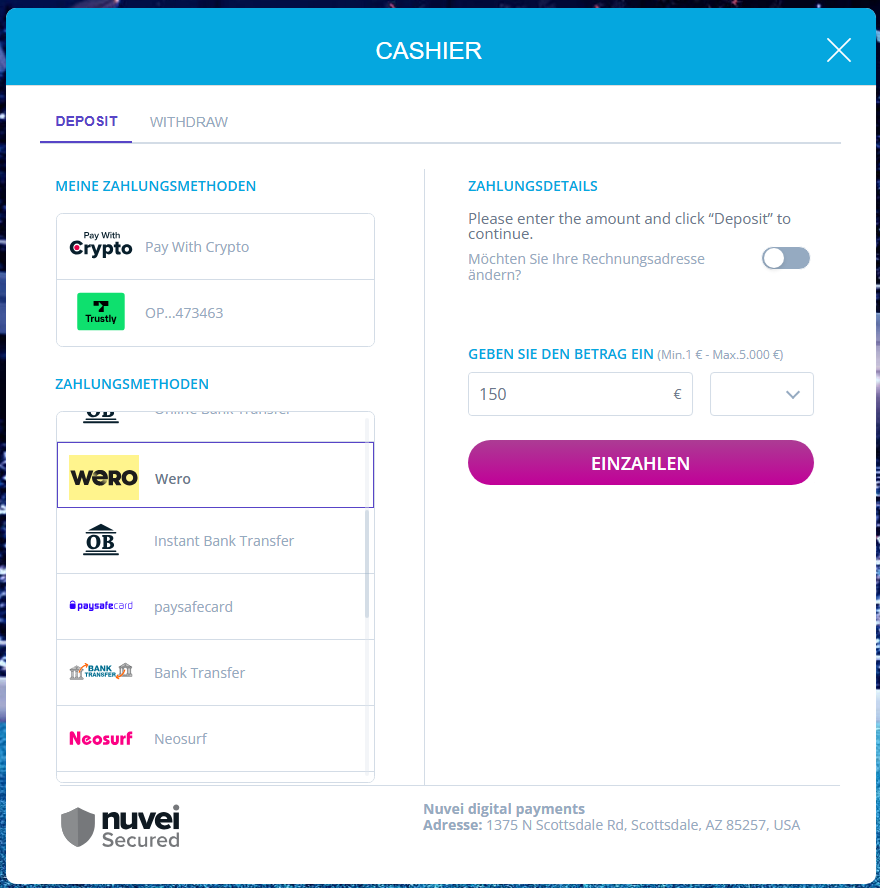
- Customer selects the Wero payment method from the merchant page.
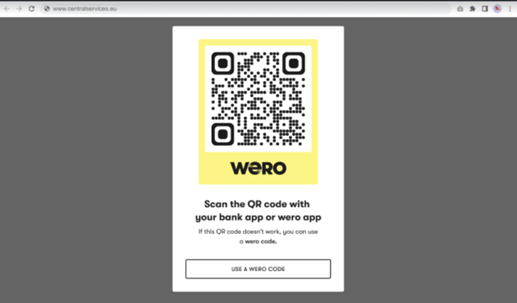
- Customer is redirected to a page that displays the QR code.
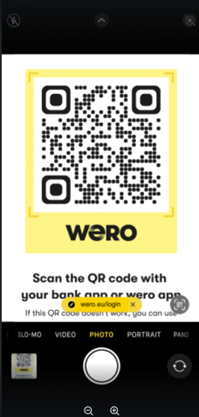
- Customer scans the QR code with a mobile phone.
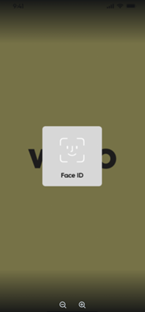
- In the Wero application that opens, the customer is identified.
- The customer chooses a bank account and swipes right to approve the payment.
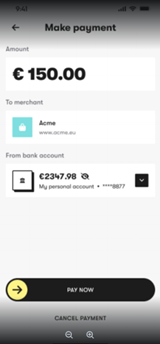
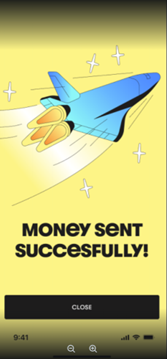
The payment confirmation is displayed to the customer.
User Journey – Single Payment, Returning User
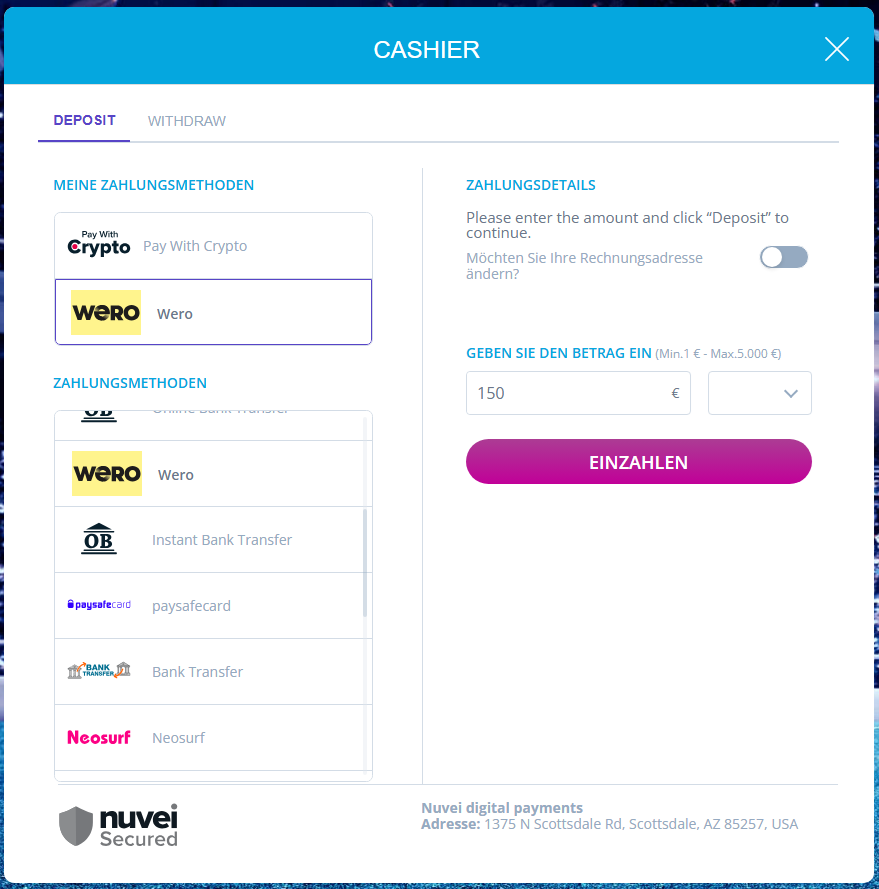
- The customer selects the existing Wero payment method from ‘My Payment Methods’.
If a customer selects ‘Save this payment method for future use’ during a previous payment, the method is displayed in ‘My Payment Methods’.
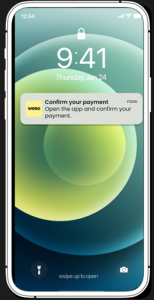
- The customer taps the push notification on the mobile phone.
- The Wero application opens and the user is authenticated.
- The customer swipes right to approve the payment.
The payment confirmation is displayed to the customer.
 Last modified October 2026