

- METHOD TYPEE-wallet
- PAYMENTS

- PAYOUTS

- REFUNDS
- RECURRING
Introduction
Revolut Pay is a fast, easy, and secure way for a customer to make payments to businesses directly from a Revolut account.
Supported Countries
Supported Currencies
Web SDK 1.0
Payment
Nuvei Web SDK 1.0 can display Revolut Pay in the merchant checkout. Revolut Pay must be enabled for the Nuvei merchant account, the transaction country, and the transaction currency.
Before Starting Payment
- Call ‘
/openOrder‘ on the merchant server to obtain a ‘sessionToken‘. - During Nuvei onboarding, obtain the Revolut ‘
publicToken‘ from Nuvei. - Use ‘
publicToken‘ for the applicable environment.
Payment Flow
- The merchant initializes a merchant Nuvei Web SDK 1.0 session.
- The merchant calls ‘
RevolutsdkCheckout‘, including session information, amount, currency, the Revolut'publicToken', and the container in which to render the ‘Revolut Pay’ button. - Nuvei Web SDK 1.0 loads Revolut Pay
The ‘Revolut Pay’ button is displayed in the specified container. - The customer selects the ‘Revolut Pay’ button.
- Nuvei Web SDK 1.0 creates the Nuvei payment.
- Revolut opens the Revolut app if the app is installed or opens the Revolut web page.
- The customer authenticates, if required, and confirms the payment.
- The merchant ‘
RevolutsdkCheckout‘ callback receives the payment result. - Nuvei sends a DMN containing the final transaction status.
Example Revolut Pay Initialization
nuveiWebSDK.RevolutsdkCheckout(
    {
        sessionToken: sessionData.sessionToken, // from /openOrder
        publicToken: "YOUR_REVOLUT_PUBLIC_KEY", // provided by Nuvei
        renderTo: "#revolut-button",
        amount: amount,
        currency: currency,
        buttonStyle: {
            size: "small",
            variant: "dark",
            radius: "small",
            action: "buy",
            cashback: true
        },
        savePaymentMethodForMerchant: false
    },
    function (result) {
        console.log(result);
    }
);
Parameters
The following parameters are available for ‘RevolutsdkCheckout(params, callback)‘:
| Parameter Name | Description | Data Type | Mandatory | Default |
|---|---|---|---|---|
| sessionToken | Session token returned by '/openOrder' | string | Yes | |
| publicToken | The merchant's Revolut public key for the applicable environment. Provided by Nuvei. | string | Yes | |
| renderTo | CSS selector of the container for the Revolut Pay button. For example, '#revolut-button'. | string | Yes | |
| amount | Payment amount. The value must match the amount sent in '/openOrder'. | number | Yes | |
| currency | ISO currency code. The currency must be supported for Revolut Pay. | string | Yes | |
| locale | Language of the Revolut screens. | string | No | en |
| buttonStyle | Button appearance, passed to Revolut as-is. The object can contain 'height', 'size', 'radius', 'variant', 'action', and 'cashback'. | object | No | Revolut default |
| customer | Use this object to pre-fill known customer information in the payment flow. | object | No | |
| savePaymentMethodForMerchant | Requests that Revolut saves the customer's Revolut Pay payment method for future merchant-initiated payments, such as subscription payments. Set to 'true' only after obtaining the customer's consent. | boolean | No | false |
| redirectUrls | Redirect URLs for desktop browser payment flows, including 'success', 'failure', and 'cancel' destinations. | object | No | |
| mobileRedirectUrls | Redirect URLs for mobile browser payment flows, including 'success', 'failure', and 'cancel' destinations. | object | No |
Standard payment fields that the merchant provides, such as ‘
userTokenId‘ or ‘billingAddress‘, are passed through to the payment.The following 'buttonStyle' values are accepted by Revolut:
- ‘
height‘ – string - ‘
size‘: ‘large‘ or ‘small‘ - ‘
radius‘: ‘none‘, ‘small‘, ‘large‘, or ‘round‘ - ‘
variant‘: ‘dark‘, ‘light‘, or ‘light-outlined‘ - ‘
action‘: ‘donate', ‘pay‘, ‘subscribe‘, or'buy'– Controls the action label displayed on the ‘Revolut Pay’ button. - ‘
cashback‘: ‘true‘ or ‘false‘ – Displays rewards information on the button.
Example buttonStyle
buttonStyle: {
    height: "46px",
    size: "large",
    radius: "small",
    variant: "dark",
    action: "pay",
    cashback: false
}
CustomerDetails Object
Parameters
| Parameter Name | Description | Data Type | Mandatory |
|---|---|---|---|
| name | The customer's full name. | string | No |
| The customer's email address. | string | No | |
| phone | The customer's phone number, including country code (example: +44...). | string | No |
| dateOfBirth | An object containing the customer's date of birth. | object | No |
| billingAddress | The customer's billing address. | No | |
| shippingAddress | The customer's shipping address. |
Example CustomerDetails
interface CustomerDetails {
name?: string
email?: string
phone?: string
dateOfBirth?: {
day: number
month: number
year: number
}
billingAddress?: Address
shippingAddress?: Address
}
Web SDK 1.0 Events and DMN Results
Web SDK 1.0 sends the Revolut Pay result to the ‘function(result)‘ callback in ‘RevolutsdkCheckout()‘.
Example RevolutsdkCheckout()
sfc.RevolutsdkCheckout({
    sessionToken: '',
    renderTo: '#revolut-pay-button',
    amount: '',
    currency: '',
    publicToken: ''
}, function(result) {
    console.log('RevolutsdkCheckout result =>', result);
    // Show the result to the customer.
    // Do not fulfill the order here. Wait for the DMN.
});
The callback returns one of the values described in the following table.
| Value in Callback | Description |
|---|---|
result: "APPROVED" | Transaction is approved. |
result: "DECLINED" | Transaction is declined. |
result: "PENDING" | Final status is not yet known. |
status: "ERROR" | Revolut returned an error. |
status: "CANCELLED" | Customer cancelled the payment. |
Immediately after Revolut confirms the payment, Web SDK 1.0 receives the transaction status. Web SDK 1.0 does not wait for the final status; therefore, the callback can return ‘
PENDING‘.Nuvei sends a DMN, that contains the final status, to ‘
urlDetails.notificationUrl‘ defined in the merchant ‘/openOrder‘ request.Simply Connect 1.0
Payment
Simply Connect 1.0 displays Revolut Pay in the Payment Method Gallery and internally manages the Revolut payment journey. Add the Revolut Pay configuration to ‘apmConfig‘ when you call ‘checkout()‘, and receive the checkout result through ‘onResult‘.
Before Starting Payment
- Ensure that Revolut Pay is enabled for your Nuvei merchant account and for the applicable country and currency.
- Call ‘
/openOrder‘ on your server and obtain a ‘sessionToken‘. - Obtain your Revolut ‘
publicToken‘ from Nuvei. - Pass the ‘
publicToken‘ in ‘apmConfig.apmgw_RevolutPay‘.
Payment Flow
- The merchant server calls ‘
/openOrder‘ and obtains a ‘sessionToken‘. - Load ‘
checkout.js‘ and call ‘checkout()‘. - If the payment method is enabled and the session country and currency are supported, Simply Connect 1.0 displays Revolut Pay in the Payment Method Gallery.
- The customer selects the Revolut Pay tile.
- Simply Connect 1.0 loads Revolut Pay and displays the Revolut Pay button inside the tile.
- The customer selects the Revolut Pay button, and Simply Connect 1.0 creates the payment.
- Revolut opens the Revolut app if the app is installed or opens the Revolut web page.
- If required, the customer authenticates and confirms the payment.
- Simply Connect 1.0 passes the checkout result to ‘
onResult‘. - Nuvei sends a DMN containing the final transaction status.
Example checkout
checkout({
  sessionToken, merchantId, merchantSiteId, env,
  amount, currency, country, locale,
  renderTo, payButton, showResponseMessage, onResult,
  apmConfig: {
    apmgw_RevolutPay: {
      publicToken: "YOUR_REVOLUT_PUBLIC_KEY",
      buttonStyle: { height: "44px" },
      redirectUrls: { ... },
      mobileRedirectUrls: { ... },
      savePaymentMethodForMerchant: false,
      customer: { ... }
    }
  }
});
apmConfig.apmgw_RevolutPay Keys
| Key | Description | Mandatory |
|---|---|---|
| publicToken | Merchant Revolut public key, provided by Nuvei for a specific environment. | Yes |
| buttonStyle | Button appearance, passed to Revolut as-is. The object can contain 'height' (default: 44px), 'size', 'radius', 'variant', 'action', and 'cashback'. | No |
| customer | Use this object to pre-fill known customer information in the payment flow. | No |
Checkout and DMN Results
Simply Connect 1.0 passes the checkout result through ‘onResult‘. Nuvei sends a DMN containing the final transaction status.
User Experience
- For checkout in the merchant user-interface, the user clicks the ‘Revolut Pay’ button.
- User-interface with Web SDK 1.0:
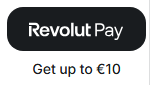

- User-interface with Web SDK 1.0:
-
- User-interface with Simply Connect 1.0:

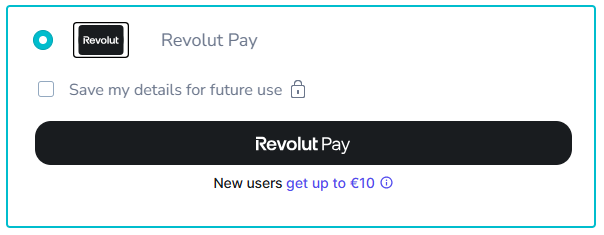
- User-interface with Simply Connect 1.0:
-
- If the Revolut app is installed, the Revolut app opens for the user to review and authorize the payment.
- If the Revolut app is not installed, the user is redirected to a secure Revolut payment page for the user to review and authorize the payment.
Upon successful authentication, the user is returned to the merchant user-interface where a ‘Payment successful’ confirmation is displayed.
Returning Customers
Revolut determines which of the following types of flows applies to a returning customer:
- Faster, frictionless flow.
- Flow with strong customer authentication (SCA).
 Last modified November 2026